Thursday, 24 October 2013

Cover for Android changes your lock screen with everything you need as you move

Cover for Android aims to bring context to your lockscreen
Last week, its Aviate which is an alternative Android launcher that dynamically changes apps and widgets based on the time of day or where you are. The app is in a closed beta right now, but i can tell you it is a solid app, and it has replaced Nova as our default launcher since it came out. Now, Cover is aiming to do the same thing, but with your lockscreen.

The idea is essentially the same. Cover will learn where and when you use certain apps, and will automatically add those links to your lockscreen. The really interesting thing is the presentation, because Cover is aiming to be completely seamless. This means it lists your favorite apps on the left and as you drag the icon to the right, you will see the app you're opening sliding in. You can even just peek in at an app and not open it all the way. Additionally, Cover adds in a multitasking bar that pulls in from the right and looks quite a bit like the Ubuntu Touch launcher. 

Unfortunately, just like Aviate, Cover is in a closed beta, and you will need to request an invite in order to use the app. There are no invite codes to be shared, so I can't help you out on this.


Monday, 21 October 2013

This App For Android Is The Ultimate Battery Saving Tool For Your Device When In Sleep Mode

If you’re tired of waking up having forgotten to charge your smartphone, and realize that a relatively high amount of battery has been reduced considerably, you are not managing your device’s functions properly. If you run out of juice much quicker than you think you should be, the chances are, a few tweaks and alterations to the way you manage your handset could make all the difference. Deep Sleep Battery Saver wants to help with the science of battery retention, by slipping your smartphone into a deeper sleep overnight -while you’re tucked away in bed.

Granted, many of you probably have your device docked, or simply charging by your bedside, but where this isn’t a possibility, Deep Sleep Battery Saver could be of real assistance. It disables your radios (3G, 4G, Wi-Fi), as well as your notifications, but that doesn’t mean you’ll wake to find no activity. Deep Sleep Battery Saver will rise from the deep sleep at set intervals to retrieve any messages or general alerts, so doesn’t forgo anything it its quest to enhance your battery life.

Sunday, 20 October 2013

Google Glass: Everything You Need To Know

While Google Glass is still currently a developer’s toy, who has the time to wait until it becomes an item for the masses? So we did a little digging, got our fingers dirty and found 10 things you can expect from this high-tech eyewear.We’ll talk about its hardware, what it’s capable of doing and how it’ll do it. Be prepared for the future as you might see many people wearing the Google Glass when it’s released.With the predictive power of the google now Google Glass will be one great piece of techonology you can ever have in your lifetime

1. Tiny (But Powerful) Hardware

It’s amazing how the Project Glass team has managed to squeeze all of its features into a tiny ‘computer’ supported on a lightweight yet strong frame.
Glass Flexibility
Google Glass is packed with Bluetooth, Wi-Fi, GPS, speakers, a camera, microphone, touchpad andpossibly a gyroscope that detects head-tilts. Then there’s the main piece, a tiny screen the size of your finger, that shows you all the information you need at your finger tips.

Saturday, 19 October 2013

Nvidia Takes On Screen Stuttering With G-Sync

If you’re a PC gamer, you may have heard of the term V-sync. It works by delaying the image frame update until the vertical blanking interval of the display, so that there is no overlapping of frames that leads to screen tearing. While this does eliminate screen tearing, it causes performance issues with low framerate and a jerky mouse response. This leads to most people choosing to keep it disabled to get higher framerate and response at reduced visual quality.
The problem today is that LCD monitors usually have a fixed panel refresh rate of 60Hz and unless the GPU is attaining anything other than 60fps, the result is less than ideal performance. Current V-sync technology makes the GPU run through hoops to match its speed with the display’s refresh rate. This is where NVIDIA’s G-SYNC comes in.

Thursday, 12 September 2013

Microsoft's Cortana’ Siri-like Voice Assistant For Windows Phone

Until this point, Siri and Google Now have been battling for the title of best personal voice assistant, but soon Windows Phone users may get a voice-enabled search aide of their own. Microsoft is reportedly readying a Windows Phone 8.1 update that may include a new personal assistant codenamed “Cortana.” Named after the “Halo” character, the Cortana voice assistant is expected to build upon WindowsPhones’ existing basic voice commands with the capability to learn and adapt.

Wednesday, 11 September 2013

Apple iPhone 5s


iphone5s-main-cover.jpg


Apple unveiled their next-gen iPhone, iPhone 5s along with the new iPhone 5c at a special event on 10 Sept 2013 (Tuesday). The iPhone 5s is a much improvised version of the iPhone 5 with new internals, although it sports almost the same design and offers some revolutionary features. Here's a look at Some new features of the iPhone 5s.

1.iOS 7
iOS 7 is the biggest change happened to iOS since the introduction of the first iOS. It sports a brand new user interface, new set of redesigned Icons, brings new and improved features, such as a refreshed multitasking view, AirDrop, improved Notification Center and Control Center. It also offers new native apps and a new version of Siri. The new iPhone 5s will run iOS 7 that leverages its 64-bit A7 chip, the Touch ID fingerprint identity sensor, and the new iSight camera. 

2.New A7 chip with 64-bit architecture

Friday, 30 August 2013

Windows Phone 8


Tiles Are Here to Stay
That's right: Windows Phone 8 is obviously still very much a tile-based experience, so if you weren't a fan of them in the first place, you're unlikely to be convinced here to adopt Windows Phone. The good news is, for those of who do enjoy this particular UI, the live tiles are much better implemented this time around.
For one, the tiles are resizable, allowing for more customization on the homescreen. Granted, they cannot be sized freely; come on, that would simply be chaos. Rather, users can choose from three sizes: large, medium, or small. The first two were available on Windows Phone 7 (they were the column-width rectangle and the square, respectively), but the addition of the small size mixes things up a bit, with four small tiles equivalent to one medium tile.

Multitasking In iOS 7 : Multitask Intelligently, And Without A Huge Hit To Battery Life Or Performance

iOS 7 finally brings true multitasking to every iDevices. Of course, iOS has always had fantastic multitasking. From the very first demo of the very first iPhone by Steve Jobs in 2007, its ability to fade music out, take a phone call, click a picture and email it, then return to the phone call, hang up, and fade right back into the music seemed miraculous to the crash-prone competition of the time.
Then the App Store happened, and all those third-party apps weren't allowed anywhere near the background. Things changed in 2010 with iOS 4, when streaming music, VoIP, and turn-by-turn navigation were granted persistent access to multitasking, and many other apps were given a few minutes of leeway, and the ability to go to sleep and restart, theoretically, right where they left off. But it wasn't enough.
Thanks to some system-side smarts, however, it looks like iOS 7, along with a new interface, will make good on the multitasking promise while at the same time protect battery life and performance. If they can do it, they'll be the first to really nail multitasking on mobile.
Here's how Apple describes multitasking in iOS 7:

Thursday, 29 August 2013

Parallels Access Puts OS X And Windows Apps On Your iPad As If They Were Native For Your iDevice.

Parallels has built its name up from a series of software allowing consumers to run Microsoft’s Windows on a Mac. There are, of course, numerous apps offering a similar service, but with ease of use and generally smooth functionality, Parallels Desktop has become the go-to choice for many looking to enjoy the best of both worlds. Now, the company has come through with Parallels Access, an app for iPad that allows convenient remote control access to both Windows and OS X desktops and notebooks.


The thought of connecting a device to a computer for purpose of remote desktop can seem quite intimidating, but Parallels Access is an almost noob-proof app allowing for easy access to Windows or Mac directly from your Apple tablet. In fact, I think the app, with its invitingly tidy interface and spacious placement of the various elements, has been created in an attempt to entice the uninitiated.
Often, it is the case that remote desktop services simply shrink down the desktop as-is, offering a stuttered, pixelated representation of the true desktop experience. Parallels Access works a little differently, instead providing a comfortable new interface from which users can operate.

Saturday, 24 August 2013

Why iOS Has Always Been Smoother Than Android ?


      Anyone who has ever owned a smart phone at some point has been asked “Why not use an iPhone? They’re the fastest and don’t lag!”. Admittedly I use Android almost exclusively, although I have owned iPhone’s in my life. I cannot deny that the iPhone is buttery smooth.

The truth is that IOS is actually not “faster” than Android, and they typically load up applications almost at the same time on both platforms, but it’s the fluidity at which it loads them that makes people love the iPhone. The reason for this fluidity is the way that IOS renders the UI (User Interface) thread, compared to how Android renders it. Android was built with multitasking in mind, so by design Android behaves much like a regular computer does. IOS on the other hand was built to where it should react nearly instantaneously to what your finger does. In short when you put your finger on the screen on IOS everything stops (generally) and puts all it’s resources towards doing what your finger does. Android however is different, your finger isn’t made first priority when it touches the screen. Take your phone right now and start loading a website, as it is loading try to pan around the website without lifting your finger…what happens? If you’re using Android then the web page will continue to load as you pan around, however if you’re on IOS the webpage stops loading until your finger is removed from the screen. You might also notice that the content on the screen doesn’t respond to your finger immediatly on Android whereas it does on IOS.

Thursday, 22 August 2013

Why I Use an iPhone.

I currently use an iPhone 4S and I plan on getting the next iPhone. This wasn’t supposed to be a secret (if you follow me on Twitter then you would have noticed that I use iOS most of the time). I know that a lot of readers did not know, and more importantly, were surprised to read that I use an iPhone. Below you’ll read my responses to questions I have received about why I use iOS, when I made the transition, and why it matters. If you have follow up questions or comments then feel free to leave a comment or reach out to me on Google+ +Bilal B .
You said that there are specific reasons why you use iOS over Android. What are they?
App Store: iOS still has vastly superior apps in every category that matters to me. Apps like iBooks, Yahoo! Weather, Mailbox, Reminders, and Safari provide a vastly better experience than their counterparts or peers on Android. There are admittedly some apps that have counterparts on Android that are better (Path and Hangouts come to mind), but that has been the exception, not the rule, in my experience. There are definitely apps on Android that let you do things that you can’t do on iOS, but the apps on iOS are better for the things I want to do than they are on Android.
Performance: Performance on iOS is more consistent than on Android, especially with the passage of time. I’ve owned and used a lot of Android phones, and most of them slow down over time. Android 4.3 might finally solve that problem for the phones that will actually get it, but time will tell. My iPhone 4S is finally now starting to lag once in a while with returning to the home page or swiping between home screens. It appears to be a bug in iOS that creeps up every so often. Outside of that, however, this is the first phone I’ve had that has lasted me two years without having major performance issues. Maybe that can be explained away by inferior hardware on my previous Android phones or OEM skins or the lack of complexity in iOS, but the reality is that I, and plenty of other people, have recognized that Android seems to become more janky with time.

Saturday, 27 July 2013

iOS 7: how does it stack up against Android?

iOS 7 vs Android Jelly Bean


WWDC-2013-banner
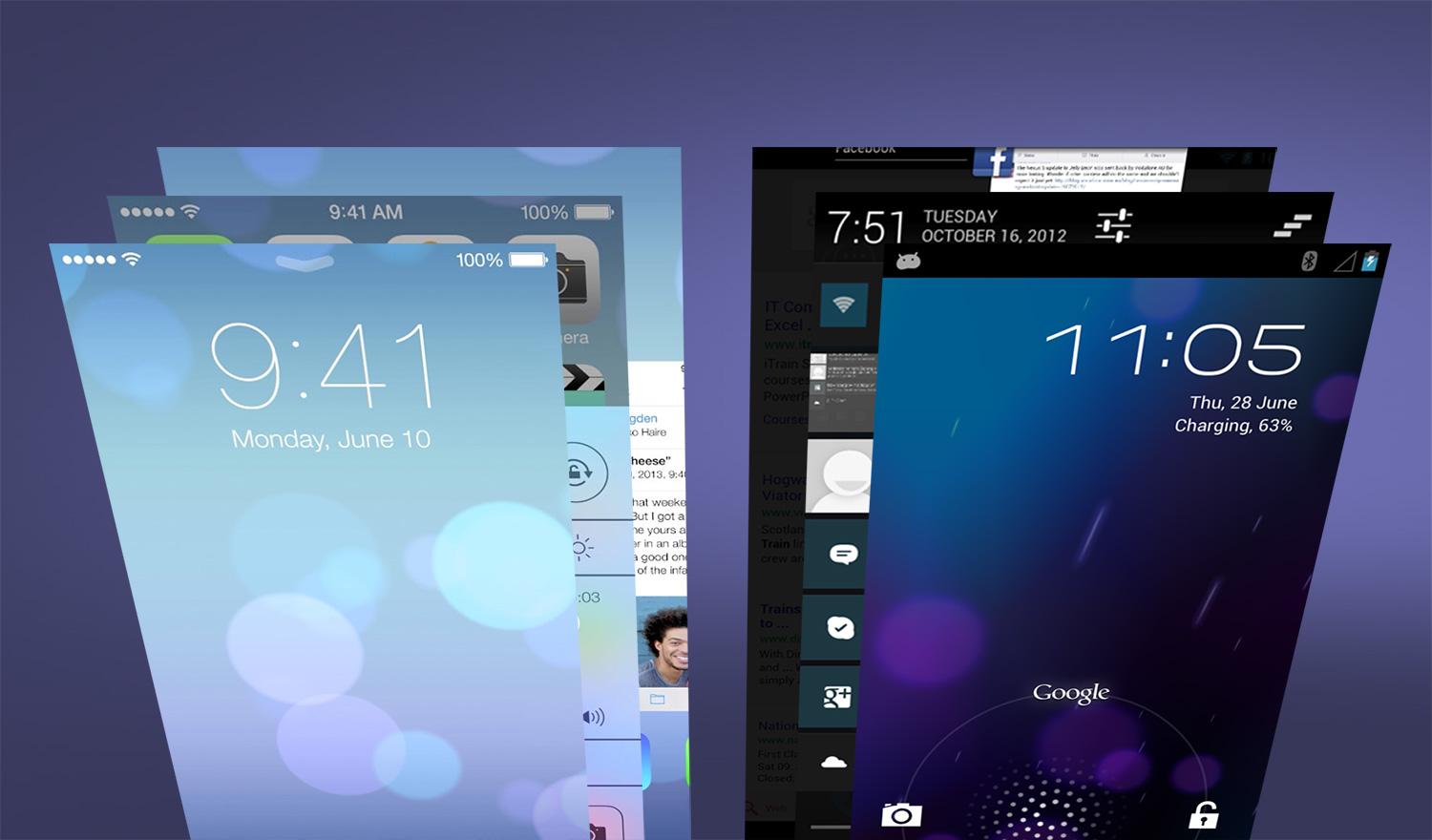
Derived from Apple’s OS X, iOS kicked off the touch revolution six years ago. But while competitors like HTC, Samsung, LG, Google, Microsoft, and BlackBerry have constantly shown off newer and better looking versions of their own operating systems, Apple has largely refrained from tinkering with its success. Until now, that is. Due to mounting pressure from Android phones, Apple has redesigned iOS and added a host of new features. With iOS 7, Apple is trying to pull even with and one-up Android at every turn. So how does iOS 7 look when it is put side-by-side to Android? Below, we compare the lock screen, notification bar, and many other features to show you just how much iOS 7 does and doesn’t look like Google’s Android.

Lock Screen

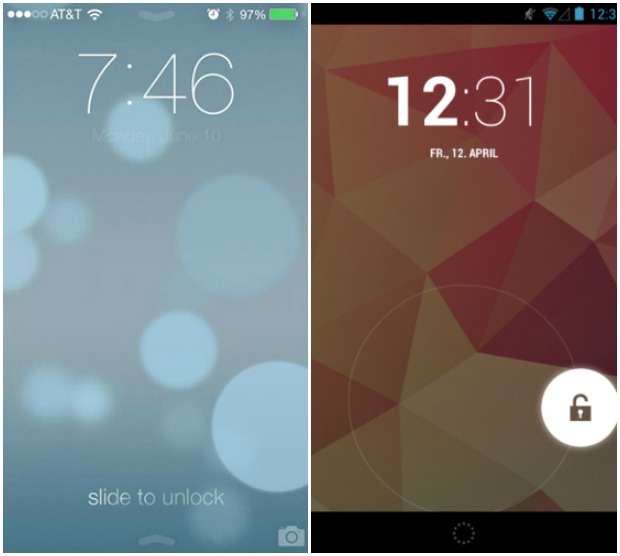
LockScreensWithout diving in to the patent war between Samsung and Apple, the lock screen that Apple went through the trouble to defend in court was eliminated. This change is probably the best indication of what it has done to the entirety of iOS 7. Apple’s OS greets you with a new, clear, simple look that may or may not be a direct homage to Android’s own lock screen. All you’ll see is text telling you the time, date, and the directions to slide to unlock your device. In contrast, Android has a similar looking screen, but allows users to customize the information they get with widgets. Though widgets were rumored to make their way into iOS 7, they are still absent. So if you count on information presented in a translucent box  to fill your lock screen, chalk this up as a win for Android 4.2 Jelly Bean.

Notifications

VSNotificationsWhile we’re talking about the lock screen, it’s worth noting that iOS 7 offers the ability to view the notification bar without unlocking your device. This is a feature that has been present in Android for a few versions now. Previously, iOS users could view recent notifications, but not the whole list. There are differences in the design of iOS’s notifications, though. The Notification Center in iOS presents all information in a tabbed menu, allowing users to browse their notifications under Today, All, or Missed. Android simply presents these in a listed fashion in the order they are received and can then be dealt with as needed. The preference here will come down to how you like your notifications organized, how many yo get on a daily basis, and how you prefer to handle them. If you like to take care of things immediately, Android’s system is probably best for you as you can take action or dismiss them with some easy swipes. Apple’s redone notification system, on the other hand, will be nice for those who compartmentalize and don’t immediately act on notifications.

Navigation


Apple is probably best known for it’s single button approach to things, a design commitment that has long confused Windows fans when they use an Apple mouse with only one button on it.The iPhone and iPad only have one single button for navigation and the rest is done on screen. To streamline the process, Apple apps now feature slide-out “drawers” to enhance in-app navigation. These drawers have been

Sunday, 21 July 2013

How To Find & Install a Custom ROM For Your Android Device


One of the great things about Android is that the operating system isn’t stuck on just one device – you can find it on all sorts of gadgets from multiple manufacturers. Another beautiful feature about Android is that it is extremely customizable, and (usually) so is the hardware. This means that if you’d rather run a custom ROM on your device, thechances of being able to do that is pretty good.
However, since not every device can be hacked into to make such changes – as the manufacturers can still choose to be restrictive if they feel it’s necessary – you’ll need to have a strategy to look for custom ROMs for your device. Also, if you do find a custom ROM you’d like to try out, you’ll need to know what you must do on your device in order to install the ROM.

What’s A Custom ROM & Why Use One?

A custom ROM is simply a version of Android which third-party developers create for your device. They are meant to replace what is known as the stock ROM, or the version of Android that the manufacturer provided on your device. There are many reasons why you may want to try a custom ROM on your device. In most cases, they take away all the bloatware that is usually impossible to remove, they can potentially increase performance and/or improvebattery life, and they may bump you up to a newer version of Android that the manufacturer may not offer.
There are potential downsides to running custom ROMs, however, which include invalidated warranties, lack of hardware support for things such as your camera, and potential battery drain. However, if you stick to a custom ROM which comes from a more reputable source, then these downsides except for the invalidated warranties shouldn’t appear.

Where To Find One For Your Device

There’s a handful of different places you can look at to see if there’s a custom ROM for your device, but I highly recommend that the first place you should check out is CyanogenMod. These guys are among the leaders of custom Android ROMs and therefore one of the most reputable. They offer support for a huge variety of phones, so a high percentage of you should be able to find a custom ROM from them.
Their ROMs usually improve performance and battery life, upgrade your device to a newer version of Android than what the manufacturer supports, and includes some other extras such as enthusiast-level performance settings. If your device is quite popular, then CyanogenMod is most likely to offer custom ROMs for it.
However, if your device is pretty unknown or CyanogenMod simply happens to not have a custom ROM for it, then your next best place to look is the XDA Developers Forum. This community is packed with Android hackers who work on every project under the sun. The site is also quite large simply because they have sub-forums for just about every Android device ever released, and many people post their own custom ROMs into these sub-forums.
Be cautious, however, as anyone can post their custom ROMs onto the forums, and as such, offer no guarantees of success or community support. It’s best to read through the threads entirely before making a decision.
For some rough, general guidelines, make sure that:
  • The developer has claimed it to be stable and not beta, alpha, etc.
  • The developer claims complete hardware support.
  • Multiple people have posted in the thread claiming success with the custom ROM.
  • The amount of concerns that arise in the thread are at a minimum; any concerns that do appear should not seem critical to the ROM’s functionality or safety.
Of course, try to use common sense while determining whether you should try a custom ROM that you find. This is important because any major hiccups in the flashing process (everything explained below) can cause your device to become bricked, leaving it as functional as a paperweight.

Installing Your Custom ROM

Saturday, 25 May 2013

This App Scans Your Android Phone To Check For Apps That Are Spying On You.

We’ve done it ourselves. You want to try out an app so you just blindly stab your way through the required menus and options until the app is installed, ready for your perusal. But what if it’s doing something it shouldn’t?As everyone probably knows at this point, each time an Android app is installed it has to tell the user what it will want access to. Be it location, SMS or general internet access, it’s all laid bare for us to see. It means that we can ask questions when an app asks for far too many permissions for what it’s supposed to do, for example. The problem is, not everyone pays attention.
If you’ve got a smartphone full of apps, working your way through to make sure everything’s above board is going to be time consuming, which makes it less likely that you’ll actually do it. Thankfully there are plenty of apps that promise to do the hard work for you, and one of those goes by the name of Clueful by Bitdefender.

Clueful

What Clueful does is actually pretty simple, at least on the face of it. Once installed, Clueful will look at all the apps you have installed on the same device and then go off to find out which permissions you gave it when you installed it. It saves you all the hard work.

Clueful2

It’s the next part that’s most useful though. Once it’s done its homework, Clueful categorizes those apps based on their level of risk. If it is deemed to want too many permissions, it goes in the higher risk category. From here, the suspect apps can be uninstalled directly, removing another step from what could otherwise be a convoluted process.

Clueful is free, which means there really is no good reason to avoid giving it a go, even if you’re just a little but curious about what all those apps are doing. We install so many appsthese days that it’s easy to forget to uninstall one you don’t use, and if it’s gathering data, you probably want it gone sooner rather than later.
Clueful1
If it doesn’t cost anything, what have you got to lose?

(Download: Clueful for Android on Play Store)

Friday, 24 May 2013

Android 4.3 Jelly Bean running on Google Nexus 4 seen at Thailand Mobile Expo.

.New Android 4.3 Jelly Bean Camera Features demoed on Google Nexus 4
We aren’t sure that this piece of news is legit, but there are some pretty convincing photos showcasing the latest Jelly Bean firmware update. Take a look at the photos posted at the end of this post and see for yourself, the Android 4.3 Jelly Bean update is on its way.
Most users are still unhappy that Google didn’t announce the launch of Android 4.3 at their I/O 2013 event. What they might not now, is that this new update will bring only a couple of tweaks and improvements that didn’t change too many things. However, it seems like there the camera software has been changed and improved for a better visibility of all the functions when tapping and holding in camera mode. A brand new kernel will be available soon along with the official Jelly Bean 4.3 firmware update.
Nexus 4 Update to Android 4.3 Jelly Bean Pic 1
Now that this has leaked we can be almost sure that the next Android OS update will be to Jelly Bean 4.3 and not to
 Android 5.0 Key Lime Pie. If you take a closer look at the picture that showcases the ‘About Phone’ menu, you will notice that the Build Number info is ‘occamf-userdebug 4.3 JWR45B 678310 dev-keys’. This means that the build is still in development and that the official Android 4.3 JB OTA Update might have a more recent build number.The AOSP Camera Mode now features brand new icons for HDR, rotation and contrast. The camera controls are now displayed in an horizontal arc, which is a great improvement over the previous round camera controls, making this the updates focal point. Numerous users complained about this and now they might even start to enjoy taking pictures with their Nexus 4 phone again, which also proves that Google takes user feedback seriously from time to time.
Nexus 4 Camera Controls Update in Android 4.3 Jelly Bean Pic 3Nexus 4 Update to Android 4.3 Jelly Bean Pic 2All this info appeared on Reddit and the pictures were first uploaded to XDA Developer forums. Check the photos taken at Thailand Mobile Expo below and decide for yourself if these are real.
If these are real, then the official announcement regarding the release date of Android 4.3 Jelly Bean shouldn’t be that far. We hope that we won’t have to wait for too long for new details to emerge from Google.
UPDATE: a video has surfaced and it features the Android 4.3 Jelly Bean UI running on Google Nexus 4. The video was shot at the same Thailand Mobile Expo.

Saturday, 11 May 2013

i-mate Intelegent phone to shoehorn Windows 8 on a "4.7" screen for $750

I-mate Intelegent phone to shoehorn Windows 8 on a 4.7" screen for $750, dock in tow

Remember i-mate? The company used to make aluminum-clad, fairly compact smartphones in the dawn days of Windows Mobile, harking back to the early 2000s even.

Then its partnership with HTC fell flat, board members were accused of fraud, and we haven't seen anything from it for a few years already, just knew it relocated to Redmond, WA. That's until Microsoft came out with Windows 8. Although it said its new touch-oriented OS is not to be shoehorned in a phone, at least not yet, as it is not optimized for the smaller screens, i-mate went ahead and did just that.

The first phone running Windows 8 (not WP8) is apparently going by the clever codename

Wednesday, 3 April 2013

How To Check If An iPhone Or Android Device Is Factory Unlocked Or Not.


One of the perceived downsides of the smartphone industry is the monopolization of devices through carrier locking. At point of sale and when you sign up to a contract with a carrier, it’s understandable, but thereafter, getting a handset unlocked can be a trying, if not impossible process. If you want to check whether your device is unlocked for use on any network, a niftyonline service completely has your back, and not only is the website incredibly easy to use, but if you’re on Android, there’s also an app available to download over at the Google Play Store. More details after the break.
There are many reasons why you may want to check whether your device is unlocked. It might just be that you’re curious, and wish to know that if you wanted to switch over to a different carrier, you could do so with minimal fuss. Alternatively, you may be looking to stick your handset on eBay, in which case, you would want to know whether the device was tied down or unlocked so you could accurately notify the prospective buyer. Also, as we know, unlocked devices are more valuable, and if every smartphone were unlocked forever, the world would be a better place.
Galaxy S3 iPhone 5
IMEI.info’s service, as you might have guessed, requires your device’s unique, 15 digit IMEI number in order to work, and once you’ve typed in your magic combination, you’re taken to a page with all sorts of useful information. As well as being able to find out whether your device is unlocked, it will also tell you when your device was released, what type of SIM card it uses, as well as a bunch of hardware specifications.
How to check if your device is locked or unlocked
Step 1: Point your browser to IMEI.info and enter your device IMEI number in the dialog box as shown in the screenshot. You can check your device’s IMEI number by dialing *#06# from the phone app. Once entered, hit the Check button.
Step 1
Step 2: You’ll be taken to a new screen with a bunch of your device information, click on theSIMLOCK & WARRANTY button as shown in the screenshot. This process can take up to a couple of minutes, so be patient.

Watch Colors TV in HD
TataSky.com/Free-Home-Delivery
Enjoy Movies, Serials, Shows, Songs And Many More On TataSky HD.
Step 2
Step 3: Once the process is complete, you’ll get all info on which network the device belongs to and whether it’s SIM unlocked or not.
Step 4
As a supplement to the service on the IMEI.info website, there’s also a an app available toAndroid users over at the Google Play Store. It provides essentially the same features in a clean, mobile-friendly user interface, and is absolutely free to download and use.
nexus_4_2013-4-3-19-56-1
So, if you’re thinking of selling your smartphone, or simply want to be better informed of your device, please head over to IMEI.info from your browser or, if you’re on Android, simply download the app from the link given below. Also, bear in mind that this service works for a bunch of different devices, which means you can check whether or not your Windows Phonedevice is factory unlocked or not, which is a big golden point.