Apple Nav Bar
Sunday, 30 December 2012
Are you interested in using Jolla's Sailfish OS ?
Earlier this year, back in July to be specific, the Finnish company named Jolla announced that they’d be developing a new mobile operating system based on MeeGo, called Sailfish. Since then, we haven’t had a landslide of information come out of the company, but we have had a couple of different occasions to see the OS in action. It’s not the finalized product quite yet, at least not completely, but I will admit that from the last video demo I saw of the software, I’m more interested than I ever thought I would be. When Jolla first unveiled their plans to keep MeeGo alive, by extension of another operating system, I didn’t give it much thought. Honestly, especially here in the States, MeeGo didn’t make that much of an impact – or an impact at all, so seeing another OS wasn’t all that worthwhile. With Apple’s iOS, Google’s Android, Microsoft’s Windows Phone, and Research In Motion’s BlackBerry 10, the
competition is pretty stiff. MeeGo’s presence was barely felt here, and I didn’t really see how another OS could make much of a difference. I’m not sure that’s changed, to be honest. With Windows Phone and BlackBerry 10 vying for third place, which is all important for people to talk about, it would be ridiculously hard for an operating system like Jolla’s Sailfish to wiggle in. And with a bigger focus on an expanded ecosystem for our mobile devices, a phone that’s, for all intents and purposes, all about just the phone doesn’t seem to have what it takes in today’s market. I hope that isn’t the case though. Really, I don’t. After watching the hands-on time that Engadget grabbed with Sailfish, with Jolla’s David Greaves and Vesa-Matti Hartikainen, I just want to have my own handset. Sailfish is, at its most basic level, a happy combination between Windows Phone and BlackBerry 10, and there are even more gestures in there than I ever could have hoped for. And while I love gestures, and the removal of small buttons on our touchscreen devices, it isn’t just that. It’s actually the keyboard, too. There’s a moment in the hands-on video, as they dig into the contacts app that the keyboard pops up from the bottom of the display. I love Sailfish’s keyboard. Yes, I know, I haven’t actually used it yet, and there’s a chance it could be terrible in use, but just look at it. I want it. And while I love the look of the keyboard, it was actually only the tip of the iceberg for me. Later in the video, we get to see Sailfish’s “ambiance” feature. It starts with you changing the wallpaper on your phone, of which there are a ton of different options, but it doesn’t end there. When you change the wallpaper, the highlight color on the phone changes, too. It does this automatically. And it’s so cool to see happen. Is this a revolutionary feature? Probably can’t throw a big word like that around quite yet, but it’s definitely new, and that counts for so much. And yes, that’s why I want Jolla’s Sailfish to launch, be available on a handset that’s worthwhile, and see a launch here in the United States. I don’t want it to be just an unlocked device. Sailfish is a great idea, and the execution is going very well so far, based on the demonstrations that we’ve seen on video. But is that going to be enough in 2013? It will really depend on BlackBerry 10, on what Google has in store for a major update to Android, and whether or not Apple revamps iOS in the way that everyone believes they should. Will there be any room for Sailfish?
I hope so,because I’d like to see some people using it out on the streets next year. How do you feel about Jolla’s Sailfish?
Do you think it’s going to be the next big innovation in software ??
Or will it make no impact here in the States ??
Wednesday, 19 December 2012
How To Automatically Disable 3G On iPhone 4S / 4 When Device Is Locked To Conserve Battery
akAuto3G is quite unique in the fact that the developer actually stipulates that the package is only compatible with the iPhone 4 and 4S running iOS 4.3.3 and 5.1.1, but it should definitely provide noticeable battery savings for those users. The package works by sitting in the background and waits for the user to lock the device. When the device is locked, the tweak automatically shuts off the 3G radio on the iPhone to prevent it from permanently looking for a signal and beavering away in the background using power when it isn’t actually required.
The developer also states that using the tweak could potentially extend the battery life by up to 100%, and give 7 hours of usage over 3G and 14 hours when connected to the 2G network. When user slides to unlock the device to gain access to the iPhone, the 3G radio is reactivated immediately, meaning that there should be no downtime or lack of connectivity when it is actually needed. At $2.99, the akAuto3G package is definitely one that is on the premium side, especially considering it is only compatible with two models of the iPhone, but for those who desperately need to converse battery life, this is definitely worth looking at.
akAuto3G is available as a $2.99 download from the BigBoss repository and is compatible with the iPhone 4 running iOS 4.3.3 and 5.1.1 as well as the iPhone 4S running iOS 5.1.1. akAuto3G only offers compatibility with the GSM iPhone 4 and 4S models and will not function with CDMA variants such as those found on Sprint and Verizon Wireless.
Facebook said to be working on "disposable chat" (aka sexting) app !!
communication on the Internet being essentially immortal, a new trend has been emerging in the realm of "disposable chat". So, rather than something like Gmail or Facebook, which is intended to keep your communication forever, or Twitter, where private conversation becomes public. There is a move to communication that "self-destructs" and it looks like Facebook wants in on that market. Of course, a major use for that market isn't just regular off-the-record chat, but rather sexting.
Currently, the king of the "disposable chat" market is an app called Snapchat, where users can share photos or text with friends, but the person receiving the message gets no more than ten seconds to view the message before it "self-destructs" and is gone forever. Snapchat has a community that sends about 50 million photos per day, and has a reputation for being used as a sexting tool (although we're a bit curious what can be accomplished in no more than 10 seconds...) And, as a reader points out, even if you try to take a screenshot of the Snapchat message, that screenshot will automatically delete, and the person you're communicating with will be warned that you tried to take that screenshot.
Facebook reportedly wants in on the "disposable chat" market, but it's unclear as yet how much users would trust a Facebook app for this purpose. Facebook is obviously trying to change its image a bit, from the company that shares everything publicly, to a company that gives you control. But, we're not sure how successful the move will be.
Sunday, 16 December 2012
Can BlackBerry compete without an expansive ecosystem ??

We inexorably move closer to January. With it, we move closer to new, impressive devices. Hopefully impressive. In Research In Motion’s case, they have be banking on that word impressive. Their new BlackBerry 10-based devices have a lot to work up to, and they have to impress a lot of people out there. But, the software itself will only go so far. Even the hardware can only do so much to sway people to buy RIM’s new devices. In today’s market, it’s about the expanded ecosystem. With cloud services being so important, especially to a growing number of mobile users out there, having access to a wide set of devices, all able to access content on the go, is very important. I know that, personally, a limited ecosystem is a non- starter for me. I have to be able to move seamlessly from one device to another, even if that makes use of first- or third-party applications. It’s all about the connected ecosystem. As it stands right now, this is one area that I think we haven’t heard enough of. RIM is obviously hard at work on BlackBerry 10, and all of its new features for its mobile devices, which will include at least one tablet in the fold. (That BlackBerry PlayBook will be quite interesting with BB10 on board, I think.) However, thanks to the SDK that RIM released not too long ago, we do know that RIM is going to use Evernote for document, contacts, email and calendar organization. That’s a good start. But that’s just part of what RIM needs to release for the consumer come 2013. While it’s great that RIM is making sure that your documents and contacts, along with a few other things, are organized and backed-up into the cloud (based on information from the SDK, mind you. We’ll see what it looks like at launch.), people have grown accustomed to more. Thanks to Apple’s iOS, Google’s Android, and especially Microsoft’s Windows Phone platform, the bigger the cloud and its available options therein, the better.
I believe that Research In Motion has plenty left to show off in January, and a lot of those new features are going to wow the audience. And especially the consumer. I believe there is still plenty of time left for RIM to make a “come back,” and prove to the mobile industry that they’ve still got juice. However, RIM can’t play a small game here. They have to come out in 2013 swinging. They have to aim big, even if they are trying to achieve the “third spot” amidst the mobile industry. Why? Because even Windows Phone is aiming to bring people into their ecosystem by offering all sorts of different media, the cloud, and multiple devices to enjoy that content on. Right now, as it stands, RIM’s BlackBerry Video Store is available on their PlayBook tablet, both here in the States and in Canada, so RIM should be aiming to expand that availability, as well as its hardware support, right out of the gate for BlackBerry 10. RIM needs music, movies, TV shows, podcasts, and a wide variety of all those things to ever hope to compete with the competition. (The apps that allow access to these pieces of digital content on BlackBerry-branded devices already are a good start. They just need to be “bigger.”) Then again, maybe that’s not the angle that RIM needs to take. Perhaps, right at the start, the Waterloo-based company needs to just make sure that BlackBerry 10 has the best hardware possible, both in aesthetics and function, as well as software that offers plenty of options, and is without lag or hindrance. So let me know, Dear Reader. Do you think RIM needs to expand their ecosystem, to ever have a chance at competing with the likes of Apple, Google, or even Microsoft? Or does RIM need to start “small,” and just focus on hardware and the software it launches from the start?
Let me know what you think !
Friday, 14 December 2012
Ray Kurzweil joins Google.
Futurist Ray Kurzweil is joining the team at Google. Kurzweil is most famous for making popular the idea of the "technological singularity" which predicts a time where computers will possess a "superintelligence", and it would be impossible to discern artificial intelligence from human intelligence, and that human history will eventually see a convergences of biology and technology through genetics, nanotechnology, robotics, and artificial intelligence. That sounds like something Google would be quite interested in, even if it does push us all closer to Skynet. Kurzweil will join Google as the “Director of Engineering,” and will be working on machine learning and language processing, which sounds like he will be working closely on Google's so-called "neural network" or Google's virtual brain. As we covered before, Google's virtual brain has become a huge part of the voice recognition software, which is used extensively on Android devices for voice search, voice commands, and dictation. The virtual brain is also a key component that helps Google Now to figure out the connections between information and supply you with relevant cards. In announcing the news, Kurzweil said,
"I’m thrilled to be teaming up with Google to work on some of the hardest problems in computer science so we can turn the next decade’s ‘unrealistic’ visions into reality."
He is set to begin at Google on Monday, December 17th.
Thursday, 13 December 2012
Jolla’s Sailfish Rises From MeeGo’s Ashes !!
Jolla’s Sailfish OS
Jolla - the startup built by the team behind the smartphone OS that Nokia abandoned in favor of Windows Phone — revealed its first big smartphone customer deal today, the mobile operator DNA of Finland. Jolla also gave a first look at the UI of Sailfish, the mobile operating system they’ve created from the remnants of Nokia’s MeeGo project, and released an SDK.
“We need to succeed in our home market in order to succeed in foreign markets as well,” said Sami PienimƤki, a vice president at the company, in an interview with TechCrunch. The company also said that it’s partnering with ST-Ericsson on chipsets for the phones.
The brave startup, which raised about 10 million euros in capital from a private consortium of investors, is hoping that it will ultimately find success in Asia, and more specifically, China. The Chinese market, which now has about 200 million smartphones in circulation, has been more hospitable to operating systems that aren’t iOS or the standard Google-endorsed flavor of Android.
A number of Android variants like Xiaomi’s MIUI have flourished there and China has historically been one of Nokia’s strongholds. Jolla has signed a distribution deal with retailer D.Phone there and is also looking at direct-to-consumer sales online.
Pienimaki and chairman Antti Saarnio said they weren’t fazed by the billions of dollars that companies like Microsoft have poured into creating a third competitive mobile ecosystem beyond Android and iOS globally.
“Our operating system is very competitive. The UI is very consumer-friendly. The big difference in this situation with us from Microsoft or others is that Jolla doesn’t have any business legacy. We don’t have any market position. We don’t have a cost base to defend. We can have very flexible models,” Saarnio said.
The company hasn’t revealed any of its other hardware or carrier partners. “We are still in discussion with several partner candidates,” Saarnio said.
Pienimaki gave me a look at the Sailfish OS. Like Windows’ interface and Android, it has a number of tiles or widgets that can pull up contacts or messages. You unlock the phone by swiping upwards and notifications are discreetly hidden in the top right-hand corner.
“It’s done in a way that so that your notifications are private and no one can see them directly on your phone’s screen,” Pienimaki said. The OS also emphasizes multitasking with the ability to peek into other applications through these widgets. You can also change the look and the feel of the UI with different photos from your library.
The company should have a video up shortly, which I’ll add (because that’s probably a better explanation of how Sailfish looks and feels than I can put in words). Update: video is below.
Pienimaki says that while Sailfish can support tablets, smart TVs, cars and other kinds of devices, Jolla will be a smartphone company first and foremost.
“The Sailfish operating system is very scalable and we have ported it to many form factors, but we are mainly a smartphone company,” he said.
DNA, a number-three mobile operator that competes against TeliaSonera and Elisa among others in the country, is one step ahead for Sailfish but in a game where companies win on scale, it has a long way to go. DNA’s announcement of the deal notes that this is a sales and marketing partnership — terms of which have not been disclosed — that will kick in “as soon as [devices] enter the market,” and that Jolla will “target” further carrier deals going forward.
watch Jolla's Sailfish
Monday, 10 December 2012
How to Fix an iPhone Stuck on Apple Logo ?
Stuck iPhone on Apple logo while booting ??
This issue (Stuck iPhone on Apple Logo) happened after jailbreaking or updatingyour device to the latest OS without enough battery-life, to fix this issue you have to enter your device in DFU mode,
Note: if you have a broken home button use our tutorial posted here
How to Fix an iPhone Stuck on Apple Logo?
Step 1: Turn off your iPhone.
Wednesday, 5 December 2012
Nokia reveals the Lumia 620, a budget Windows Phone 8 smartphone
Nokia Lumia 620, a budget WP 8 smartphone
A lower-end device than the Lumia 820 doesn’t exactly draw throngs of people at the start. But when you find out that a rather competent (in the spec department) Lumia is going to hit the street for a mere $250 unlocked and subsidy free, things get a bit more interesting. Sure, it isn’t going to be a hit in the U.S. market where most every device is subsidized heavily to the point $600-$900 phones are selling for a few hundred dollars. Globally, however, subsidies are a rare oddity with full-price phones being the norm. It is in those markets where the $249 Lumia has a real chance to get Windows Phone into the market.
Specs are as one would expect at this level – 3.8-inch WVGA (480 x 800) display, 1 GHz dual-core Snapdragon S4 processor, 512 MB of RAM, 8 GB of built-in storage w/ support for up to 64 GB via microSD card, 1,300 mAh battery and a 5-megapixel camera w/ LED flash.
Some may baulk at the display size and resolution. But honestly, it’s not that bad at all. If you have’t experienced Windows Phone, we’ll say that it functions (and looks) well at lower resolutions than probably any other mobile OS. The Lumia 822 we recently reviewed had the same resolution with a bigger, lower ppi display, and we noticed the lack of 720p resolution wasn’t nearly as noticeable as others. In fact, the display held its own. So now that it’s down to 3.8-inches (a sub-4-inch size that many people prefer) it features even higher ppi. Add to that, the Snapdragon S4 processor is a highly efficient, powerful mobile processor. Even with its 500 less MHz compared to most devices on the market, Windows Phone is again incredibly efficient and easy to drive.
Look for the Lumia $249 to start hitting the streets in Asian streets this coming January with Europe, the Middle East and other countries soon thereafter.
Read more at http://gadgetsteria.com/2012/12/05/nokia-announces-lumia-620-3-8-inch-wvga-display-1-ghz-dual-core-249unlocked/#cSYJ8rlZmgDctZ2J.99
Google Now
Introducing Google Now.
Google Now gets you just the right information at just the right time.It tells you today’s weather before you start your day, how much traffic to expect before you leave for work, when the next train will arrive as you’re standing on the platform, or your favorite team's score while they’re playing. And the best part? All of this happens automatically. Cards appear throughout the day at the moment you need them.

Get just the right information, at just the right time.
Just swipe up, and you’ve got the latest information you want to see, when you want to see it.No digging required.
Cards appear when they're needed most, organizing the things you need to know and freeing you up to focus on what’s important to you.You're in control.
Choose exactly which cards you see. You control whether you get a card from Gmail, reminders from calendar, traffic to your locations or searches after opting in.Flights

Sports

Next appointment

Google Now cards
Google Now helps you manage your day, stay connected and be a local anywhere. Google Now has over 20 different cards, with more to come.
Manage your day
Stay on top of what you need to do and where you need to go - whether you're near home or traveling somewhere new.
Next appointment

When you have an appointment, Google Now checks traffic so you can know how long it'll take to get there. You even get a notification for when you should leave.
Shown based on synced calendars and current location
Weather

When you start your day, Google Now shows weather for your current location and work.
Only shown if location services enabled
Traffic

Get traffic conditions and alternate routes before you leave for work. Google Now also puts traffic to your next likely destination at your fingertips.
Shown based on current location, location history and Web History
Flights New

Get real-time flight status and traffic information to the airport.
Only shown if Gmail cards or Web History enabled
Hotels New

Get one-touch navigation to your hotel when you arrive in a new city.
Only shown if Gmail cards enabled
Restaurant reservations New

Be reminded to leave for the restaurant based on live traffic information.
Only shown if Gmail cards and location services enabled
Events New

Get reminders about events you purchased a ticket for.
Only shown if Gmail cards enabled
Packages New

See when your online orders ship.
Only shown if Gmail cards enabled
Stay connected
Keep up with your interests and important information while you're on the go.
Sports

Google Now keeps you updated on your favorite sports teams in real time, with live scores and upcoming games. You can even can buy game tickets on the fly.
Shown based on Web History
Movies New

See showtimes and ratings for what's playing when you're near a theater. Also be notified when a movie you're interested in arrives at theaters.
Shown based on your Google data such as Web History and if location services enabled
Ice Age available on Google Play. © 2012 Twentieth Century Fox Film Corporation. All rights reserved. Rated PG.
Concerts New

See when your favorite artists have concerts at venues near you.
Shown based on your Google data such as Web History and if location services enabled
Stocks New

Get real-time information about stocks you track.
Shown based on Web History and Google Finance portfolio
Public alerts

Receive emergency messages such as storm warnings and earthquake alerts.
Only shown if location services enabled
Developing story & breaking news New

See breaking news and other developing stories you may be interested in.
Shown based on Web History
Be a local, anywhere
No matter where you are, find interesting places, activities you might like, and how to get around easily.
Public transit

When you’re near a bus stop or a subway station, Google Now tells you what buses or trains are next.
Only shown if location services enabled
Places

When you’re on the go, Google Now will suggest nearby bars, restaurants, and places of interest. You can quickly jump to Google Maps to get more info, reviews, or even make a reservation.
Only shown if location services enabled
Nearby attractions New

See what nearby attractions are popular to visit.
Only shown if location services enabled
Nearby photo spots New

Learn of popular photo spots nearby.
Only shown if location services enabled
Translation

Google Now helps you find just the right word when you're away from home.
Only shown if location services enabled
Currency

Use Google Now to quickly check the local conversion rate when you're traveling.
Only shown if location services enabled
Time at home

When you're in a different time zone, Google Now shows you the time at home so you never feel too far away.
Only shown if location services enabled
How To Enter & Exit iPhone Recovery Mode.
Enter & Exit iPhone Recovery Mode
Recovery Mode is what your iPhone goes into when you are doing a standard iOS upgrade or restore, but you may want to put your iPhone into recovery mode for other reasons (often related to a jailbreak).
Remember, Recovery Mode is different than DFU mode because DFU mode bypasses the bootloader which allows for things like downgrading firmware. You can not downgrade firmware with Recovery Mode, you can only upgrade or restore.
Enter iPhone Recover Mode
- Disconnect the USB cable from your iPhone, but leave the other side connected to your Mac or PC
- Launch iTunes
- Press and hold down the Home and Sleep/Power button on the top of the iPhone to turn off the iPhone
- Press and continue to hold the Home button while you reconnect the USB cable to your iPhone, this will cause the iPhone to turn on
- Continue to hold the Home button until an alert message in iTunes informing you that an iPhone in recovery mode has been detected, like the screenshot below:
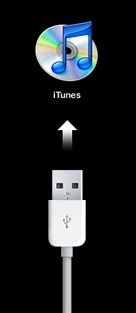
Your iPhone is now in recovery mode. If you have not launched iTunes, you will see the familiar screen of the USB cable pointing at the iTunes logo signaling to connect the iPhone to iTunes to start recovery.
Once you’re in recovery mode, you can either restore the iPhone or adjust the firmware as necessary (you can download iPhone firmware here).
After restoring or upgrading firmware, your iPhone will automatically reboot and exit recovery mode on it’s own.
Exit iPhone Recovery Mode
You can typically exit recovery by doing the following:
- Hold down the home and power button for about 15 seconds, this shuts off the iPhone
- Press the power button to boot the iPhone
Tuesday, 4 December 2012
Siri
All About Siri
The iPhone 4S and heigher devices using the new iOS 6 comes equipped with a personal assistant. Its name is Siri, and your wish is literally its command. Siri understands your commands in Natural Language and will help you type a message, create a reminder, find a restaurant, and much more ... It talks back too !!
Let’s explore how to use Siri and unlock its extraordinary potential.
To begin, let’s make sure Siri is enabled.
From the home screen, select the Settings icon, followed by General, and Siri.
Make sure both the Siri switch and the Raise to Speak switch are set in the On position.

To summon Siri, hold down the home button for one second until you see the following and hear a tone.
Siri wants to know “What can I help you with?” If you tap the little i symbol, you will see a long list of some of Siri’s sample commands.

Siri has complete control of your Phone, Messages, Music, Calendar, Maps, Reminders, Email, Weather, Stocks, Clock, Address Book, Notes, and Web Search apps. Phew!

The best way to get an idea of how Siri works is by a few practice runs:


As you can see, you talk to Siri just as you would a person. If you ask a question that Siri doesn’t know, it performs a search to find out the answer.

One of my favorite things about Siri is that it is connected to WolframAlpha, a nifty fact database. For example:

Before I go, I want to share an alternative method to summon Siri. If you enabled “Raise to Speak,” you can simply lift your phone to your phone to your ear and wait for the tone. Then, say your command. This is ideal for discreet requests to Siri, when you are in a crowded atmosphere.
Finally, if you are looking for more information about Siri, view Apple’s FAQ.
Enjoy !!
To begin, let’s make sure Siri is enabled.
From the home screen, select the Settings icon, followed by General, and Siri.
Make sure both the Siri switch and the Raise to Speak switch are set in the On position.
To summon Siri, hold down the home button for one second until you see the following and hear a tone.
Siri wants to know “What can I help you with?” If you tap the little i symbol, you will see a long list of some of Siri’s sample commands.
Siri has complete control of your Phone, Messages, Music, Calendar, Maps, Reminders, Email, Weather, Stocks, Clock, Address Book, Notes, and Web Search apps. Phew!
The best way to get an idea of how Siri works is by a few practice runs:
As you can see, you talk to Siri just as you would a person. If you ask a question that Siri doesn’t know, it performs a search to find out the answer.
One of my favorite things about Siri is that it is connected to WolframAlpha, a nifty fact database. For example:
Before I go, I want to share an alternative method to summon Siri. If you enabled “Raise to Speak,” you can simply lift your phone to your phone to your ear and wait for the tone. Then, say your command. This is ideal for discreet requests to Siri, when you are in a crowded atmosphere.
Finally, if you are looking for more information about Siri, view Apple’s FAQ.
Enjoy !!
Rooting Your Android Device.
How to Root Your Android Device & Why You Might Want To

You’ve probably heard of people “rooting” their Android phones. If you’ve ever wondered how to do that yourself – or wondered why people would bother – you’re in luck. You can root your Android in just a few minutes.
After rooting your device, you have full access to the entire system and can run special types of apps that require root permissions. These apps can disable bloatware, control app permissions, enable tethering, and do lots of other cool things.
You’ve probably heard of people “rooting” their Android phones. If you’ve ever wondered how to do that yourself – or wondered why people would bother – you’re in luck. You can root your Android in just a few minutes.
After rooting your device, you have full access to the entire system and can run special types of apps that require root permissions. These apps can disable bloatware, control app permissions, enable tethering, and do lots of other cool things.
What is “Root,” Anyway?
Saturday, 1 December 2012
Flash / Install CyanogenMod 10.1 Nightly On Nexus 4 Based On Android4.2 [How-To Tutorial]

One of the biggest freedoms of wielding an Android device is the choice of ROMs that you get. Unlike almost all other smartphone and tablet platforms, having an Android means you do not have to always stick to whatever the manufacturer has packaged with your device in its factory state, and much like a computer, you can choose to have your own OS, some with their own specialties and enhancements, while others built from ground up based on the Android Open Source Project (AOSP). Power users always prefer AOSP ROMs over stock or stock-based offerings, because of the broader freedom of customization and tailoring that they entail. Among those, CyanogenMod needs least of an introduction – the first ever AOSP ROM to hit the Android world has now taken another hatchling under its wings – the mighty droid, Google Nexus 4. Coming from a Google+ post made through the official CyanogenMod account, they started rolling out nightlies for Nexus 4 starting Nov. 28, and as of now, there are 4 builds available at the official repository. In this post, we’ll guide how you can install Official CM10 Nightly on your Google Nexus 4. We noticed a few random third-parties building CM10.1 for the new Nexus devices, and people actually using those builds… Since there’s a demand for it, today we’ve started rolling out nightly builds for themako (Nexus 4) at http://get.cm/?device=mako , and the manta (Nexus 10) will join in as soon as it’s ready. The rest of the devices will still be getting 10.0 (Android 4.1) builds until we finish merging 4.2 and flip the switch for everybody. As usual, no ETAs. Thanks for not asking Disclaimer It’s all the usual stuff, that you do what you do, including following these instructions, at your own risk. We cannot be held liable for any damage to your device. Also, do keep in mind that these nightlies are experimental builds, and not always fit for daily usage. They are also updated on a day- to-day basis, as more fixes are rolled into the code. You have been warned.
Requirements :
Rooted Nexus 4 with CWM recovery (if you don’t know how to root your device, check out our rooting guide for Nexus 4) CM10 Nightly Package ZIP Google Apps for Android 4.2 At least 50% or more battery charge left ADB is not a requirement for this, but it’s good to have it installed on your computer, just in case you need to revert back. Also, we recommend taking a Nandroid backup of your current configuration, just in case. You can download the aforementioned files from : CyanogenMod.com.
• Procedure
Step 1: Download both CM10 nightly package and Google Apps, and transfer them to the root of your device’s internal memory.
Step 2: Reboot your Nexus 4 into recovery by first pressing and holding power & volume up, and then selecting recovery.
Step 3: Do a Wipe Data/Factory Reset, followed by Wipe Cache.
Step 4: Navigate down the recovery menu to Advanced, and here, perform a Dalvik Cache Wipe.
Step 5: Go back, and choose Install ZIP From SD Card, followed by Choose ZIP from SD Card. Select the CM10 nightly package and let it flash.
Step 6: Once complete, repeat step 5 and flash the Google Apps package.
Step 7: Once that is done, too, reboot the device. The first boot will take longer than usual, as the system complies itself, but when your device boots up, you’ll be running an official CyanogenMod 10 Android 4.2 nightly on your Nexus 4.
For More Details : Click Here.
Subscribe to:
Posts (Atom)